When we first moved into our apartment several years ago I purchased a bunch of ‘smarthome’ equipment. One of those items was a Nanoleaf Essentials A19 Smart Bulb.
It never really worked. At the time it was because our kitchen light was on a dimmer switch and — as I learned — smart lights do not tend to work (well) on dimmers. The only solution was to replace the switch or, instead, not be able to have a smart light.
We couldn’t replace out the switch given that we live in an apartment. And so the Smart Bulb instead acted as a (not very good) dumb bulb for several years. Until now.
The Issue
When I installed the Nanoleaf Essentials A19 Smart Bulb into the kitchen light that was on a dimmer switch I was able to turn on the Smart Bulb. However, I could never get it to connect to my smart home environment. This is a documented issue on Nanoleaf’s support webpage.
I exclusively use Apple products and, in this case, was unable to get the smart bulb to connect to Apple Home or to the Nanoleaf app.
The Environment
The items that I was dealing with included:
The Solution
Fortunately this ended up being a surprisingly easy thing for which to solve.
- Remove your Nanoleaf Essentials A19 Smart Bulb and record the 8-digit code that is below the QR code on the bulb.
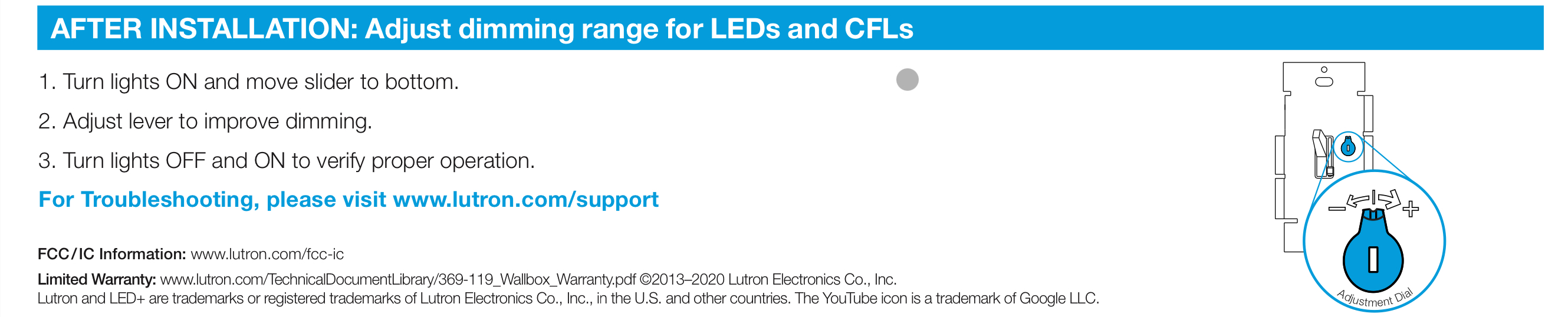
- Remove front plate over the Lutron AYCL-153P Dimmer switch.
- There will be a small ‘dial’ that you can turn on the switch, to the right of the toggle switch. Turn it all the way to the right.1
- Factory reset your Nanoleaf Essentials A19 Smart Bulb2
- Disable the 5Ghz wifi radio temporarily on your Eero Pro 6. This involves: Open Eero App >> Settings >> Troubleshooting >> My Device Won’t Connect >> My Device is 2.4 GHz Only >> Click ‘Temporarily Pause 5GHz’. You must do this so that you can connect the Nanoleaf Essentials A19 Smart Bulb to your wireless network, because it only has a 2.4GHz radio.
- Add the device to Apple Home on an iOS device. This involves: Click the ‘ ’ icon in the upper right corner of the Apple Home app >> Add Accessory >> More options >> My Accessory Isn’t Shown Here >> Enter Code >> Continue >> Finalize adding the bulb to your Apple Home application.
You will now be able to access your Nanoleaf Essentials A19 Smart Bulb from Apple Home.
- From Nanoleaf: Turn off, wait for 3 seconds, turn back on for no more than 3 seconds. Repeat for a total of 5 power cycles. Bulb will flash red three times if successful. Note that it may take 2-3 second for this flashing to occur after the final power cycle. ↩︎
 Excited Pixels