Categories
Photography

Automate Screen Brightness for Photography Apps

Several years ago I posted about a “Glass Time” shortcut. When activated it opened the social media application I use to post and view photography — Glass — and then increased the brightness to 100%. The intent was to ensure I was looking at images closer to how the photographer intended.

The only issue was that I needed to remember to activate the shortcut instead of opening the application itself. This worked but was a bit clunky, and so I’ve created a more pleasant way to achieve the same thing.

Enter some Apple Shortcuts and Automations.

Mission Statement

I wanted my screen brightness to jump to 100% whenever I opened Glass or my photo editor (Darkroom) and then drop back down to 50% once I closed them.

Components

To make this work I had to create Apple Shortcuts and Automations. The shortcuts handle the brightness setting and the automations tell your device when to run those shortcuts. Specifically, I needed an:

  • Apple Shortcut that, when activated, increased the screen brightness to 100%
  • Apple Shortcut that, when activated, reduced the screen brightness to 50%
  • Apple Automation that triggered 100% brightness when opening Glass, and a separate Apple Automation that did the same thing when opening Darkroom.
  • Apple Automation that triggered 50% brightness when closing Glass, and a separate Apple Automation that did the same thing when closing Darkroom.

Building and Linking Components

The process for creating the various components was very easy. To create the underlying Apple Shortcuts:

  1. Open Apple Shortcuts
  2. Tap/click the “ ” button, and in the search bar search for “Set Brightness”
  3. Set the Brightness slider to 100%. Modify the name of the shortcut to something like “Set Brightness 100%”.
  4. Create a second shortcut the same way, but set the slider at 50%. Name the shortcut something like “Set Brightness 50%.”

To create the automations to trigger the different screen brightness levels:

  1. Open the main screen of Apple Shortcuts.
  2. Tap/click “Automation” on the menu bar.
  3. Tap/click the “ ” button to create a new automation. Select “App” in the menu, choose either Glass or Darkroom (or another application of your preference), and the radio button “Is Opened.” Have the automation run immediately. Tap/click “Next”.
  4. In the next screen, scroll to find your Apple Shortcuts “Set Brightness 100%” in “My Shortcuts.” Your automation is now completed and the brightness will go to 100% when opening the relevant application.
  5. Repeat steps 1-4, but modify the radio button chosen in step 3 to “Is Closed”, and in step 4 choose the “Set Brightness 50%” shortcut.

Limitations of Automations

Your Apple Shortcuts will sync between all of your Apple devices through iCloud but this will not occur with your Apple Automations. This means that you’ll need to repeat the automation steps on all of your devices that you want the automation to activate on.

Categories
Solved

Solved: Apple Wallet Card Activation on a New iPhone

When I set up my new iPhone 17 Pro I ran into a frustrating problem: I couldn’t activate some of my credit and banking cards in Apple Wallet. Since this might happen to others, here’s how I diagnosed the issue and worked around it.

Setup Context

  • Transferred settings (including Apple Wallet) from my iPhone 14 Pro
  • Cards from CIBC and Wealthsimple
  • Used SMS (not voice) as the second factor for verification

The Problem

After transfer, my cards appeared in Apple Wallet but still needed to be re-verified. Each time I tried SMS verification, the text code arrived and auto-filled into the Wallet app — but the “Next” button was greyed out.

On some attempts, the button turned blue, but tapping it did nothing. Result: I couldn’t verify or use my cards.

The Workaround

The fix was surprisingly simple: don’t rely on auto-fill.

  1. Request the SMS code as usual.
  2. Open the Messages app, copy the code manually, and paste it into Wallet.
  3. This time the “Next” button turned blue and worked, letting me add the cards.

Likely Cause

Based on testing, there may be a bug in iOS 26.0 where auto-filled SMS codes don’t properly trigger the Apple Wallet verification step. Until Apple fixes it, copying the code manually may help you get around the issue.

Categories
Aside

2025.9.13

I’m looking forward to an iPhone upgrade year and leapfrogging to AirPods Pro 3 — hopefully this time I can get a good fit without needing third party ear tips!

I’m also curious about Apple’s new crossbody straps. Not for my phone — I haven’t used a case in years — but maybe as an adjustable strap for my smaller cameras.

There’s got to be someone who’ll review this use case, right? And if not… consider this my open call.

Categories
Solved

Solved: HDCP Error After Updating Apple TV 4K to TVOS 18.4.1

I recently updated my Apple TV 4K to tvOS 18.4.1. After this, I received HDCP errors when trying to view content from steaming services (e.g., Disney , Amazon Prime, Crave).

These post outlines how I solved this problem.

Background and Context

I am using a TCL 55R635-CA, to which I have connected the Apple TV 4K and a Sonos Arc (with an attached Sonos Sub Mini).

When I updated my Apple TV 4K to tvOS 18.4.1, I received a prompt on my TCL 55R635-CA that I had to rename the Sonos Arc that is plugged into the TCL’s eARC HDMI port. I didn’t think anything of it and selected a new icon, but otherwise made no changes to the configuration of the TCL audio settings. I had never received this kind of prompt, before, when updated the Apple TV 4K.

YouTube content played without any errors. However, when I tried to steam content over Disney , Amazon Prime, or Crave I received HDCP errors. The error messages indicated that I might be trying to copy protected content (I was not doing this). Solutions proposed were to reseat HDMI cables to ensure a good connection, test different HDMI inputs to confirm they all worked, or replace the HDMI cable in case it had become damaged.

Failed Solutions

  1. I tried to reseat HDMI cables. This did not resolve the error messages I was receiving.
  2. I rebooted the Apple TV. This did not resolve the error messages I was receiving.
  3. I reset the Apple TV back to factory settings, and reinstalled streaming services. This did not resolve the error messages I was receiving.
  4. I pulled the plug — to fully depower — the Apple TV. This did not resolve the error messages I was receiving.
  5. I pressed the power button on the TCL remote, to turn off the television, and turned off the Apple TV. This did not resolve the error messages I was receiving.

Solution to Apple TV 4K HDCP Errors

My Apple TV 4K and Sonos Arc are plugged into a TCL 55R635-CA. When you turn off the television using the remote you do not actually turn off the television and, instead, just put the television into standby mode.

To resolve my HDCP errors when using my Apple TV 4K, I pulled the power plug for the television. I left the TCL 55R635-CA fully depowered for approximately 3 minutes. I then plugged the TV back in and turned it on.

Once the television turned back on, and switched over to the Apple TV 4K input, the errors had been resolved. The problem, the whole time, was with the TCL television and fully depowering the television resolve the HDCP errors.

Categories
Links Photography

Best Photography-Related Stuff of 2024

It’s the time of year for people’s best-of roundups. Like last year I wanted to recognize stuff that meant a lot to my photography through 2024. And, this year, I’ve also added a short list of hopes for stuff in 2025!


Photography Stuff I Used

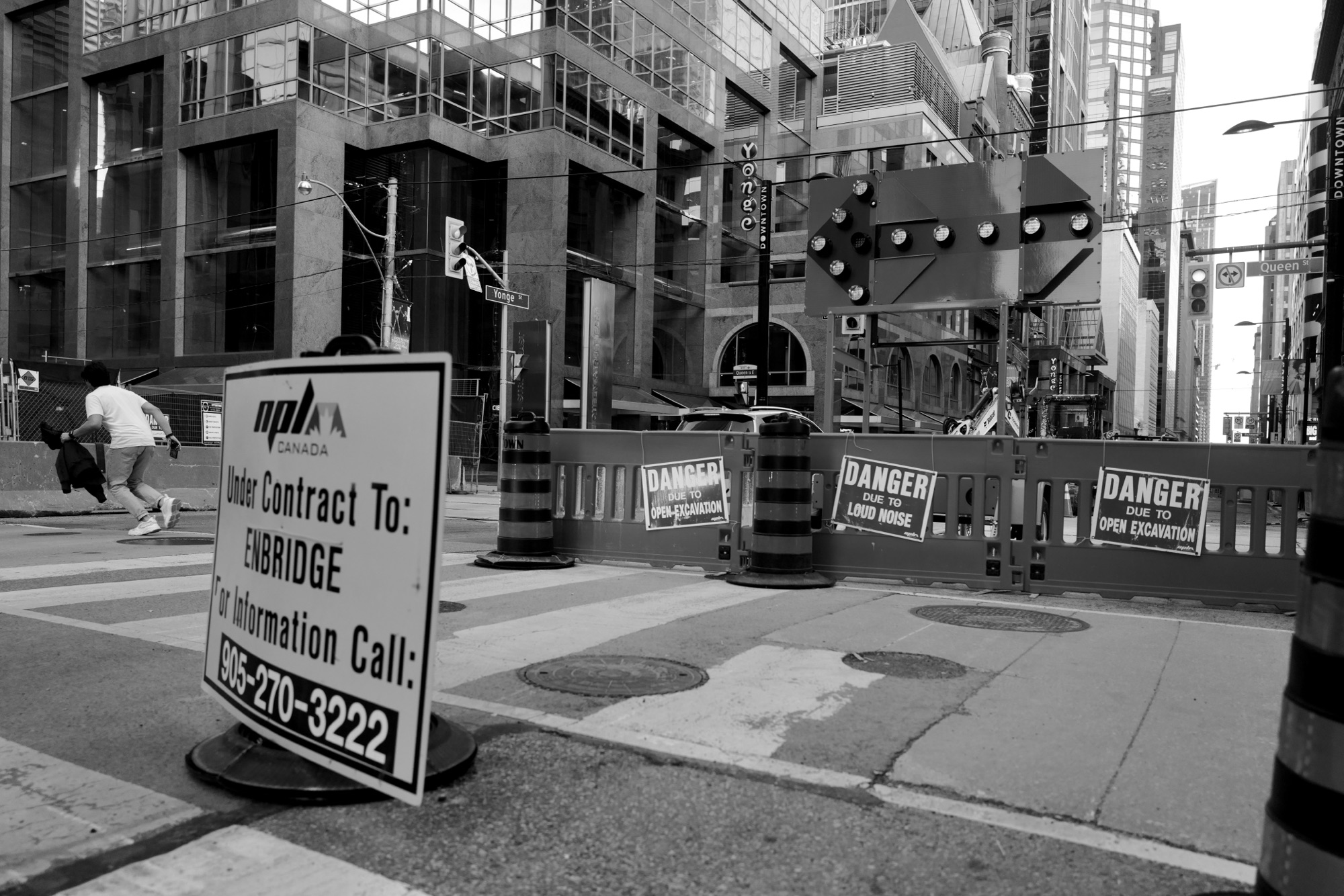
Yonge & Dundas, Toronto, 2024

Best Technology of 2024

The big change this year? I pretty well completely pivoted to my Leica Q2 and with only rare exceptions did I use the Ricoh GR IIIx or my iPhone 14 Pro. When I bought the Q2 it was, in part, to be able to capture images at night where there was little light. I’ve made images under these conditions that I’m happy with and I’ve come to learn how to better use the 28mm focal range. At this point I’ve created well over ten thousand frames over the year.1

I upgraded to the 11” iPad Pro (2024) and definitely appreciate how light the device is, and how vibrant the screen is. I continue to use an iPad Mini for most of my actual reading but write a lot of blog posts on the iPad Pro and do all my photo editing on it.

When I take my photowalks I’m always listening to a podcast or music on my AirPod Pros. However I’ve long had an issue with finding tips that best fit my ears; the ones in the box always slip out. I recently learned about, and bought, the SpinFit CP1025 (S/SS) and they’ve been game changing. I get a perfect fit and the AirPods stay in my ears. Highly recommend them!

Best Services I Paid For

I continue to post images to Glass each day. I’m still disappointed with their AI search, and especially disappointed that landscape viewing on the iPad has now been broken for about a year.2 Still, it’s a terrific community and a good place to post images regularly.

Apple One is key to my data management strategy. I’m still under the 2TB that is provided as part of the subscription though, with my current data use, I suspect that in 3-5 years I’ll need to expand that 2TB storage limit.

Lastly, while I’ve watched less photography YouTube I continue to appreciate YouTube Premium. It’s still about the most regularly used subscription service that I use on a regular basis.

Best Apps

Have I changed the apps that I rely on regularly since 2023?

Nope.

And so my best apps of 2024 include:

  • Glass: I use to share my images on a daily basis.
  • Geotags Photos Pro and Geotags Photo Tagger: I use to add geotags to my images.
  • Reeder Classic: To follow various photography blogs.
  • Apple Podcasts app: I use this to listen to photography podcasts while on my weekly photowalks.
  • Apple News: To read photography magazines and websites that otherwise would be paywalled.
  • Apple Photos: Used to edit and store all my images. I don’t love the iOS version of the application but it is what it is.

Stuff I Made

College & Clinton, Toronto, 2024

Writing

  • Sharing Photographs, and Photography, with Others and Growing as a Photographer: Despite being pretty used to being in the public eye as a result of my day job it’s different to expose myself when sharing the images that I make. Those images, if read carefully, reveal some elements of myself that I showcase less often, and this is made even revelatory when producing and sharing physical items to people I respect or submitting digital images to competitions. Just talking about that experience was liberating and reaffirmed that I am, slowly, growing as a photographer.
  • Accidentally Discovered Street Photos: Imagine my surprise when, after opening my used copy of Conversations: With Contemporary Photographers a strip of exposed Kodak 100TX film fell out! I used a free app to enlarge some of the images and while my efforts weren’t spectacular it did result in seeing — and sharing — some images from an earlier time.
  • 10 Tips for Starting to Photograph on the Street: I regularly read and view content that is meant to help new photographers get comfortable on the streets. Much of that content is good but is directed towards a certain kind of concern, and way of behaving, on the streets (e.g., Zone focus! Shoot from the hip! Be invisible!). I think that my 10 tips are for people like me who are interested in making street photos but are shy about even being seeing with a camera. Really, this is a blog written for myself which, if I’d read it 10 years ago, would have given me a clearer sense of what I could do to develop my confidence and skills.
  • Nuit Blanche, 2024: I’ve been attending Nuit Blanche in Toronto, an annual art festival that runs for a single day from sundown to sunup, for many years. I always make photographs during it but, at the same time, have been challenged by using a smaller APS-C sensor camera. I was both pleased in the art that I experienced this year as well as the ability of the Leica Q2 to capture images more like how I wanted them due to its lens and sensor size.

Stuff I Read

Oxford & Augusta, Toronto, 2024

Best Photography Books and Magazines

  • Metropolis: I’ve followed Alan’s work for years and appreciate how stark his imagery is and his absolute attention to form. His images carefully consider what is absolutely needed to communicate his vision and no more.
  • Conversations: With Contemporary Photographers: This was probably the most important book about photography that I read this year. I’m, personally, interested in thinking more deeply about the ontology of photography and what it is and is not. The photographers interviewed in the book provided a range of interpretations of what photography is, and means, for each of them, and I benefitted tremendously from their thoughts on the medium as one which controls time and, also, the role of time in their own creative activities.
  • Framelines: The team behind Framelines improve the magazine with every issue. From enhancements to the printing, imagery, interviews and just shipping, this is an instant purchase each time they come out with new issues. I particularly appreciate how they celebrate new and emerging photographers from around the world and platform those who, otherwise, I’d be entirely unaware of.
  • André Kertész: Sixty Years of Photography: This book is a gift to photographers and the image-viewing public more broadly. Published back in 1978 it catalogues Kertéz’s photographic history. It is when we look at images like this that it is apparent how much you can do with black and white images that are focused on the forms across a frame, and also how having decades of images enable a playfulness between pages so that works from different decades can speak to one another and create a perception of continuity across time and space. If you are committed to street images, black and white images, or just seeing how history unfolded over sixty years, then this book is a must see.
  • The Pleasure of Seeing: Conversations with Joel Meyerowitz on sixty years in the life of photography: Joel is, of course, a (still living) legend and has a number of different monographs under his name. This book is a little different because it explores his thought process across the different phases or eras of his photography. Now, if you’ve actively listened to his talks, interviews, podcasts, and so forth over the past decades many of the messages he communicates will be familiar. But to have them all in one place, along with his images that underscore his creative vision, is a real gift to photographers.

Stuff I Watched

Great Lakes Waterfront Trail, Toronto, 2024

Best Movies

  • Lee: This was an engrossing and highly cinematic movie. I liked how it conveyed the experiences that female photographers and journalists experienced during the time period and, also, communicated the toughness of Lee Miller and the harmful effects of being a war photographer more generally.
  • Harry Benson: Shoot First: I thought this was a terrific documentary of Benson who has made a living capturing images of celebrities. The images are profound but, also, you walk away with a sense that he lacks much empathy for his subjects. The inclusion of those who love his work, and those who hate it, helps to communicate what a controversial figure Benson has been throughout his life and career.

Best YouTube Channels

  • Paulie B: Almost certainly one of the most important American street photography channels, Paulie B has done a masterful job interviewing a range of photographers across the United States to understand what drives and inspires them. His episodes showcase photographers who may not be widely known, unpacks the creative processes of those he interviews, and also lets other street photographers really see how others work the streets. We’ve all heard about how the greats of the 1960s and 1970s worked; Paulie B is showing us how our American contemporaries move, think, and behave.
  • James Popsys: James is a quiet and almost introspective photographer, which are not necessarily the traits that lend themselves well to YouTube. However, his thoughtful meditations on how and why he makes images, combined with the sheer beauty of his work, results in each video containing a gem that is worth treasuring.
  • Photographic Eye: Some channels on YouTube focus on gear or technical methods of getting certain kinds of images. The Photographic Eye is not that. Instead, Alex Kilbee explains the intellectual processes of photography and speaks as a kind mentor or peer who is, also, working through his photography. I particularly like how he shares some of his own images so that viewers can appreciate the variety and intentionality behind image making.
  • The Art of Photography: Ted Forbes has been running his channel for over sixteen years at this point and made videos on just about everything that you’d ever want to know about. I find his historical episodes that break down, and showcase, the great photographers as essential to my own photographic education. And his episodes that showcase viewers’ own projects have led me to finding a range of photographers and purchasing work from them.3

Stuff I Subscribed To

Richmond & Spadina, Toronto, 2024

Best Podcasts

  • The Photowalk: I’ve been a supporter of the Photowalk for several years and it’s a regular joy and pleasure to hear Neale and his guests talk about the broader experiences of making images. The discussions rarely touch on gear and, instead, are centred around the ‘why’ of image making. Whenever I’m out on a weekly photo walk, I’m listening to Neale and recommend that you do the same.
  • Frames Photography Podcast: Frames features photographers from across the different photographic genres. Many of the discussions are insightful for understanding what is behind different photographers’ creative processes, what motivates their projects, and how they work to express themselves to the broader world.
  • Street Photography Magazine: Featuring street photographers from around the world, this podcast exposes how and why different people got into the genre, what they aim to present through their work, and the rationales underlying how they make their images. Many of the photographers who are interviewed talk about their recent, or ongoing, projects which serves to underscore the different ways in which projects are conceptualized and brought into the world.
  • The Candid Frame: Conversations on Photography: Operating since 2006, The Candid Frame features photographers from all walks of life discussing the how and why of their image making. This is particularly useful, for me, in learning about photographers working in genres entirely different from street photography and learning how their thought processes can apply to my own photographic life.
  • Street Life Podcast: This is one of the most recent additions to my list of podcasts and I’ve been enjoying every episode this year. It typically features photographers working in and around Australia and, aside from Houman Katoozi, I’m largely unfamiliar with folks working on that continent. The podcast often has a sense of friends talking amongst themselves about street photography and you’re just overhearing them as they joke with one another, talk about the Australian street photography community, and the challenges they’re facing in their own photographic activities.

Best Blogs/RSS Feeds

  • GR Official: As an owner of a few Ricoh GRs I’m always curious about how others handle and experience the camera. This blog features a range of authors, with a diversity of photographic backgrounds and personal experiences, which means that each blog is a bit of a surprise: is this going to be a more reflective piece, a showcase of just a few images, thoughts on a piece of equipment, or…?
  • Little Big Traveling Camera: I am always envious of how focused this photoblog is, how thoughtful the author is, and how well put together the images are. LBTC is, to my eye, the definition of what an excellent personal photoblog can be.
  • Mobiography: I don’t take a large number of mobile phone photographs but I appreciate learning how such images can be made. If nothing else, it showcases just how can be done with phones of today (as well as those of a decade or more ago) in the hands of competent photographers.
  • The Phoblographer: A regular publication that both showcases contemporary work while also engaging in some opinion and discussion about trends or issues in the photographic world.
  • Ming Thein: I owe a lot of what I (think I) understand about photography to Ming’s blog. He shuttered it several years ago but has kept it alive / in archival mode. I hope that it never goes away given how helpful and insightful his writing is for new and more experienced photographers alike.
  • Skinny Latte’s Creative Brain: I loved the photoessays that were published that exhibited gorgeous photography along with explanations and narratives to surround the images themselves. Sadly the photoblog has been left behind but the images and stories remain worth revisiting periodically.

Hopes for the future

Front & Bay, Toronto, 2024
  • Apple Photos: I just want it to reach parity with its Mac counterpart. We know that Apple has purchased Pixelmator and I’m hopeful that some of that DNA makes its way over to Photos.
  • iPhone Camera app: I’ll be honest, the new iPhones’ ability to better control and develop custom JPG settings along with the adoption of JPG XL are very exciting and make me look forward to whenever I upgrade from my iPhone 14 Pro. However, I really wish that Apple would bring additional exposure metering to the iPhone and, in particular, highlight metering for my black and white images. While there are ways to get around this on the iPhone it’d be nice if it was something they could do by default.
  • WordPress: I’ve been using WordPress for over 18 years at this point and it just seems to get more and more bloated. There are basic things that just don’t seem to be well developed, such as media management or the presentation of images, while a huge amount of effort has been put into turning WordPress into an enterprise CMS. I get that the company’s business is derived from its enterprise work but it’d be nice if basic features were also included in the priority product lists.
  • Leica Q2 Thumb Grip: In a late end-of-year purchase, I’ve ordered the ‘official’ Q2 thumb grip to further improve on the ergonomics of the Q2. Here’s hoping that I end up happy with it!

  1. Though, admittedly, I’ve kept far fewer after doing my regular culling. ↩︎
  2. Yes, I’ve contacted support. No, I never heard anything back. ↩︎
  3. In the interests of disclosure I was featured in one of the mailbag episodes for my Postcards project. ↩︎
Categories
Links Writing

Significant New Cybersecurity Protections Added in iOS 18.1

Apple has quietly introduced an enhanced security feature in iOS 18.1. If you haven’t authenticated to your device recently — the past few days — the device will automatically revert from the After First Unlock (AFU) state to the Before First Unlock (BFU) state, with the effect of better protecting user information.1

Users may experience this new functionality by sometimes needing to enter their credentials prior to unlocking their device if they haven’t used it recently. The effect is that stolen or lost devices will be returned to a higher state of security and impede unauthorized parties from gaining access to the data that users have stored on their devices.

There is a secondary effect, however, insofar as these protections in iOS 18.1 may impede some mobile device forensics practices when automatically returning seized devices to a higher state of security (i.e., BFU) after a few days. This can reduce the volume of user information that is available to state agencies or other parties with the resources to forensically analyze devices.

While this activity may raise concerns that lawful government investigations may be impaired it is worth recalling that Apple is responsible for protecting devices from around the world. Numerous governments, commercial organizations, and criminal groups are amongst those using mobile device forensics practices, and iOS devices in the hands of a Canadian university student are functionally same as iOS devices used by fortune 50 executives. The result is that all users receive an equivalent high level of security, and all data is strongly safeguarded regardless of a user’s economic, political, or socio-cultural situation.


  1. For more details on the differences between the Before First Unlock (BFU) and After First Unlock (AFU) states, see: https://blogs.dsu.edu/digforce/2023/08/23/bfu-and-afu-lock-states/ ↩︎
Categories
Aside

Putting in the Work

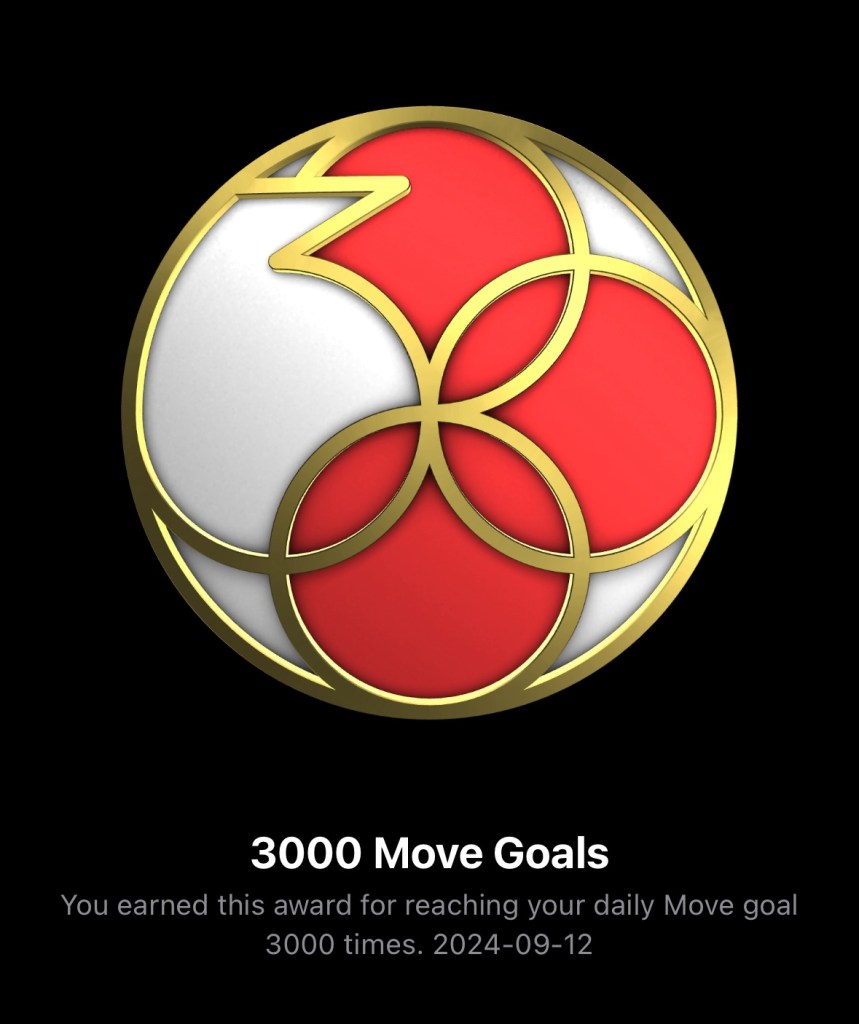
For better or worse, I tend to be decent enough at adding routines or processes into my life and then just maintaining them. When I was in grad school — prior to getting the first Series 0 Apple Watch — I personally committed to a particular fitness regime.

Fast forward to today and that has me putting in 5-6 hours a week in our (petite!) home gym. And typically if I don’t make it to our gym I’m, instead, adding in some long hours outside and moving about during the day or night.

Only a few years until I hit 4,000!

Categories
Solved

Solved: Setting Up a Nanoleaf Essentials A19 Smart Bulb with a Dimmer Switch

When we first moved into our apartment several years ago I purchased a bunch of ‘smarthome’ equipment. One of those items was a Nanoleaf Essentials A19 Smart Bulb.

It never really worked. At the time it was because our kitchen light was on a dimmer switch and — as I learned — smart lights do not tend to work (well) on dimmers. The only solution was to replace the switch or, instead, not be able to have a smart light.

We couldn’t replace out the switch given that we live in an apartment. And so the Smart Bulb instead acted as a (not very good) dumb bulb for several years. Until now.

The Issue

When I installed the Nanoleaf Essentials A19 Smart Bulb into the kitchen light that was on a dimmer switch I was able to turn on the Smart Bulb. However, I could never get it to connect to my smart home environment. This is a documented issue on Nanoleaf’s support webpage.

I exclusively use Apple products and, in this case, was unable to get the smart bulb to connect to Apple Home or to the Nanoleaf app.

The Environment

The items that I was dealing with included:

The Solution

Fortunately this ended up being a surprisingly easy thing for which to solve.

  1. Remove your Nanoleaf Essentials A19 Smart Bulb and record the 8-digit code that is below the QR code on the bulb.
  2. Remove front plate over the Lutron AYCL-153P Dimmer switch.
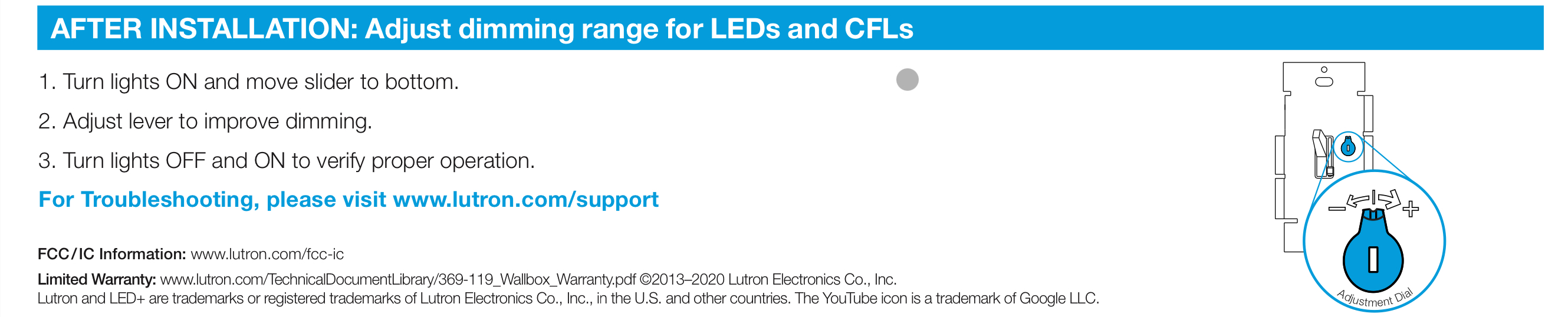
  3. There will be a small ‘dial’ that you can turn on the switch, to the right of the toggle switch. Turn it all the way to the right.1
  4. Factory reset your Nanoleaf Essentials A19 Smart Bulb2
  5. Disable the 5Ghz wifi radio temporarily on your Eero Pro 6. This involves: Open Eero App >> Settings >> Troubleshooting >> My Device Won’t Connect >> My Device is 2.4 GHz Only >> Click ‘Temporarily Pause 5GHz’. You must do this so that you can connect the Nanoleaf Essentials A19 Smart Bulb to your wireless network, because it only has a 2.4GHz radio.
  6. Add the device to Apple Home on an iOS device. This involves: Click the ‘ ’ icon in the upper right corner of the Apple Home app >> Add Accessory >> More options >> My Accessory Isn’t Shown Here >> Enter Code >> Continue >> Finalize adding the bulb to your Apple Home application.

You will now be able to access your Nanoleaf Essentials A19 Smart Bulb from Apple Home.


  1. IMG_0015
  2. From Nanoleaf: Turn off, wait for 3 seconds, turn back on for no more than 3 seconds. Repeat for a total of 5 power cycles. Bulb will flash red three times if successful. Note that it may take 2-3 second for this flashing to occur after the final power cycle. ↩︎
Categories
Aside

2024.7.16

I bought the new iPad Pro (2024) as soon as it was available and absolutely love it. The upgrade from the iPad Pro (2018) is definitely justified for me.

I didn’t buy the Magic Keyboard at the same time, both to spread costs over a longer period of time and, also, in the hopes of getting the Magic Keyboard on a sale or discount. I do the majority of my personal writing on my iPad these days, and so I’ve been missing the keyboard on a weekly basis.

Fortunately, I managed to snag an open box Magic Keyboard that’ll be arriving, soon. Looking forward to having a full keyboard for writing in the near future!

Categories
Photography Writing

WWDC 2024 What Do I (Still….) Want To See?

A couple years ago I posted what I wanted for WWDC 2022. I figured that I’d go through the past list and cross off the items that have arrived over the past two major updates to iOS.

And then I’m going to sketch out how I’d like to see Apple actually adopt more AI/ML into their operating systems.

Photos

This was a low point in iOS and remains so. I really want Apple to improve the Photos application given how regularly I use it.

  • The ability to search photos by different cameras and/or focal lengths
  • The ability to select a point on a photo to set the white point for exposure balancing when editing photos
  • Better/faster sync across devices
  • Enable ability to edit geolocation
  • Enable tags in photos

All of these are basically just aiming to have the iOS Photos app getting brought up to the same standards as Photos on MacOS.

Camera

There is so much potential that’s in the Camera application. I look at this from the perspective of a photographer, while recognizing that Apple has done a lot to really improve the state of things for videographers.

  • Set burst mode to activate by holding the shutter button; this was how things used to be and I want the option to go back to the way things were!
  • Advanced metering modes, such as the ability to set center, multi-zone, spot, and expose for highlights!
  • Set and forget auto-focus points in the frame; not focus lock, but focus zones
  • Zone focusing
  • Working (virtual) spirit level!

Maps

I actually like Maps. I use it a lot. But I definitely want things to be much more collaborative and less focused on Yelp data. I really do like the privacy aspects associated with Maps over some competing applications.1

  • Ability to collaborate on a guide
  • Option to select who’s restaurant data is running underneath the app (I never will install Yelp which is the current app linked in Maps)

Music

Music is fine on the whole. Still want to have something like multiple libraries, though.

  • Ability to collaborate on a playlist
  • Have multiple libraries: I want one ‘primary’ or ‘all albums’ and others with selected albums. I do not want to just make playlists

Reminders

While it’s getting better there’s still some things to do, though apparently the second item may be coming this WWDC which would be pretty great.

  • Speed up sync across shared reminders; this matters for things like shared grocery shopping!
  • Integrate reminders’ date/time in calendar, as well as with whom reminders are shared

Messages

These are both covered off!

  • Emoji reactions
  • Integration with Giphy!

News

I’ll be honest: I’ve given up on the RSS feed idea and just rely on Reeder. But I use News a lot and so it’d be nice to more fully block publications from coming up.

  • When I block a publication actually block it instead of giving me the option to see stories from publications I’ve blocked
  • It’d be great to see News updated so I can add my own RSS feeds

Fitness

The number one issue with Fitness is that I can’t log rest days. I’ve actually started to use Streaks to be more forgiving and stopped worrying so much about maintaining my streaks in Fitness. But it’s absurd that Apple hasn’t integrated this feature that’s widely requested by its user base.

  • Need ability to have off days; when sick or travelling or something it can be impossible to maintain streaks which is incredibly frustrating if you regularly live a semi-active life

Health

This still isn’t great. There is no good year over year data that you can compare against. I don’t understand why the UI isn’t better and I hope that it gets better soon.

  • Show long-term data (e.g. year vs year vs year) in a user friendly way; currently this requires third-party apps and should be default and native

And one more thing…

There is a lot of time and attention being paid to how Apple will show off artificial intelligence functionality in forthcoming operating systems. I tend to agree with Joe Rosensteel about what Apple shouldn’t do: no spying AI systems and instead a focus on useful AI-enabled functionalities.

For Photos I want to propose a pretty useful option for people that would leverage some existing iPhone capabilities. Imagine if you could take a photo (or use the measurement application built into Apple’s mobile OSes) to determine how large a photo would fit in a frame along with the aspect ratio and, then, prompted you to select photos for the frame. That selection could either automatically select just photos of the right aspect range or could show what an AI-determined best aspect ratio crop would look like.

If something like this were bundled up in a kickass UI I can see this being phenomenally helpful and solving a real world annoyance for anyone who wants to print photos.

We create far too many digital photos and print far too few. Physical photos are part of building longterm and vibrant memories: Apple should lean into enabling its customers to make these kinds of mementos.


  1. Rather than requesting a route from A to B, Apple Maps sends off multiple requests with multiple identifiers that masks where you’re trying to go. The app also converts your precise location to a less-exact one after 24 hours, and Apple itself doesn’t store any information about where you’ve been or what you’ve been searching for. Plus none of the information that reaches an external server is associated with your Apple ID. Source: https://www.tomsguide.com/news/google-maps-vs-apple-maps ↩︎